Get alerted about new bookings and cancellations
Set up email, SMS and mobile push alerts so you hear about new bookings, cancellations and upcoming appointments in your own calendar.
Customers get their own confirmations and reminders, but you can also be told when something happens in your own calendar: a new booking lands, a customer cancels, or an appointment is about to start. Alerts are personal, so each team member chooses their own channels and timing, and they only cover appointments assigned to that person.
Before you start
- Email alerts go to the address on your profile.
- SMS alerts need a phone number on your profile and use the business's SMS credits, just like customer messages.
- Push alerts need the Calendia app on your phone with notifications turned on (see below).
Set up email or SMS alerts
- Click your name near the bottom of the sidebar and choose Settings.
- Open Booking alerts in the settings menu.
- Under When, choose what should trigger the alert:
- When a booking is added — a new appointment is placed in your calendar, whether by a customer online, a colleague, or the AI receptionist.
- Before the appointment — a heads-up a set number of minutes before an appointment starts.
- When a customer cancels — the customer cancels from the booking page or by phone through the AI receptionist.
- Under Channel, choose Email or SMS.
- For Before the appointment, pick a Lead time (5, 15, 30, 60 or 120 minutes) or choose Custom and enter the Minutes before yourself.
- For When a booking is added, tick Only for last-minute bookings if you only want to hear about appointments that start soon, then set Notify if starting within (1, 3, 6, 12 or 24 hours, or a custom number of Hours).
- Click Add alert.
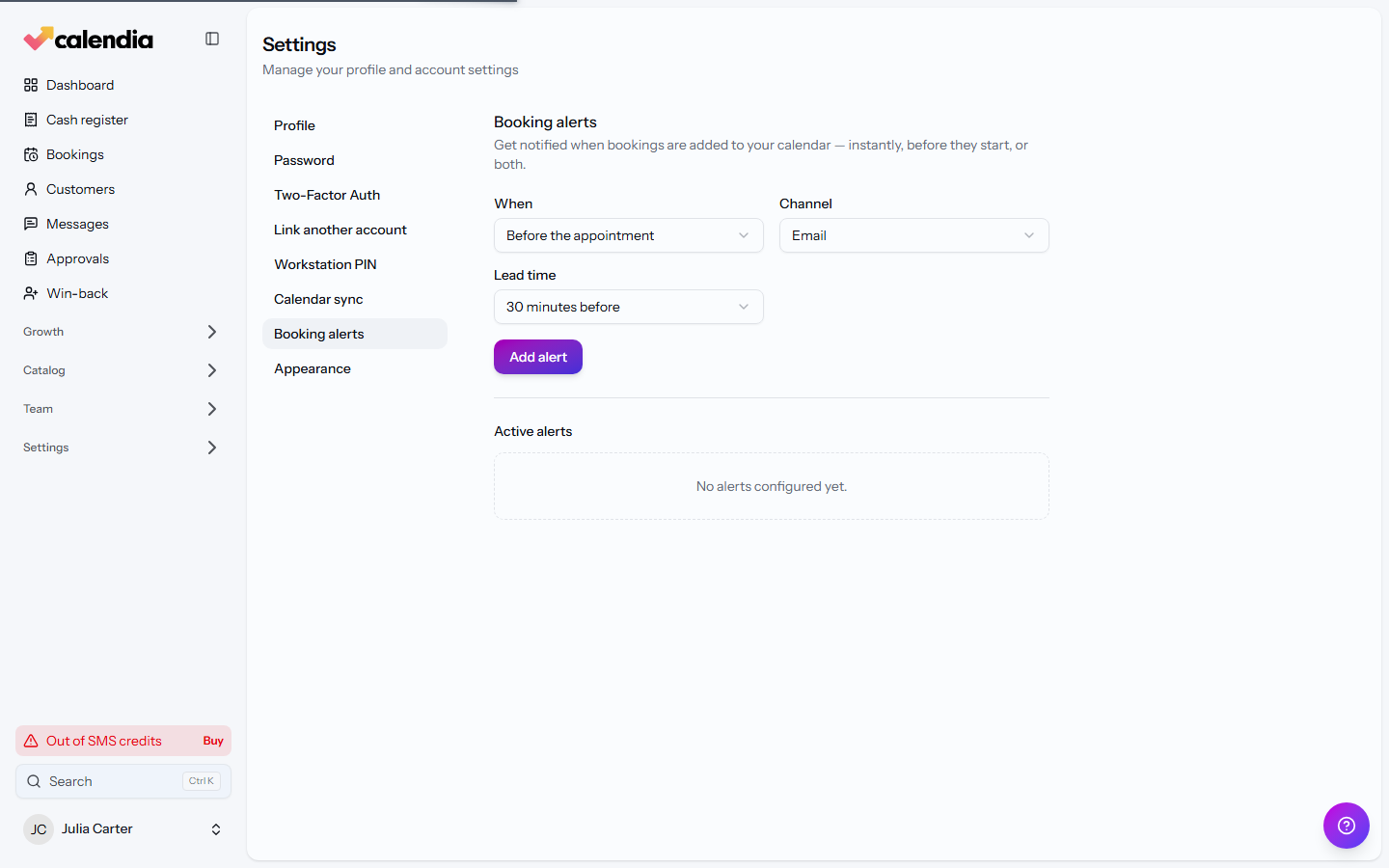
Your alerts appear under Active alerts. Click the On / Off badge to pause one without deleting it, or use the trash icon to remove it. You can combine as many alerts as you like, for example an email for every new booking plus an SMS one hour before each appointment.
Get push alerts in the Calendia app
The Calendia app for iPhone and Android can notify you even when you are away from the computer.
- Sign in to the app. The first time you open the Agenda it asks to Enable notifications; tap Turn on and accept the system prompt.
- If you skipped that, open the Settings tab and turn on Push notifications. If your phone has blocked notifications for Calendia earlier, the app opens the phone's settings so you can allow them again.
- Under Notifications, choose what you want to receive:
- New booking alerts — on by default for every new booking. Tap one of the time chips to limit alerts to bookings that start within the next 1, 3, 6, 12 or 24 hours, or keep All bookings.
- Booking reminders — turn on to get a push before each appointment, and pick At start time or 5, 15, 30 or 60 minutes before.
Cancellation pushes are always on: when a booking in your calendar is cancelled by anyone else, your phone tells you right away.
What you see on the dashboard
While the web calendar is open, bookings made by customers or colleagues appear in it as they come in, without a refresh. The dashboard does not show a separate alert for them, so use the email, SMS or push alerts above if you need to be told while you are busy elsewhere.
Frequently asked questions
Can I get alerts for a colleague's bookings?
No. Alerts follow the calendar the appointment is assigned to, so each team member sets up their own. Owners and admins who want an overview of everything coming in can use the Needs action and All upcoming queues on the Bookings page instead.
Do SMS alerts cost anything?
Yes. Each SMS alert is deducted from the business's SMS credits, and sending stops when the balance is empty. Email and push alerts are free.
Why did I not get a push for a booking I added myself?
The built-in new-booking and cancellation pushes skip changes you made yourself. Once you pick a time window for New booking alerts in the app, those alerts are sent for every booking that matches, including ones you add. Email and SMS alerts are always sent, whoever made the booking.
Related articles
Reminders and notifications
Confirm bookings by SMS, remind customers before their appointment, and nudge them to book again once a treatment wears off.
Create a booking
Add an appointment to the calendar from the Dashboard for a fast walk-in booking, or from Bookings for a full booking with recurrence.
Move, edit or cancel a booking
Reschedule a booking by dragging it or through the Move booking dialog, change its details, or cancel it and record a reason.
Online booking settings
Control how far ahead customers can book, what details they must provide, and whether they pay a deposit, the full price, or nothing at booking.